
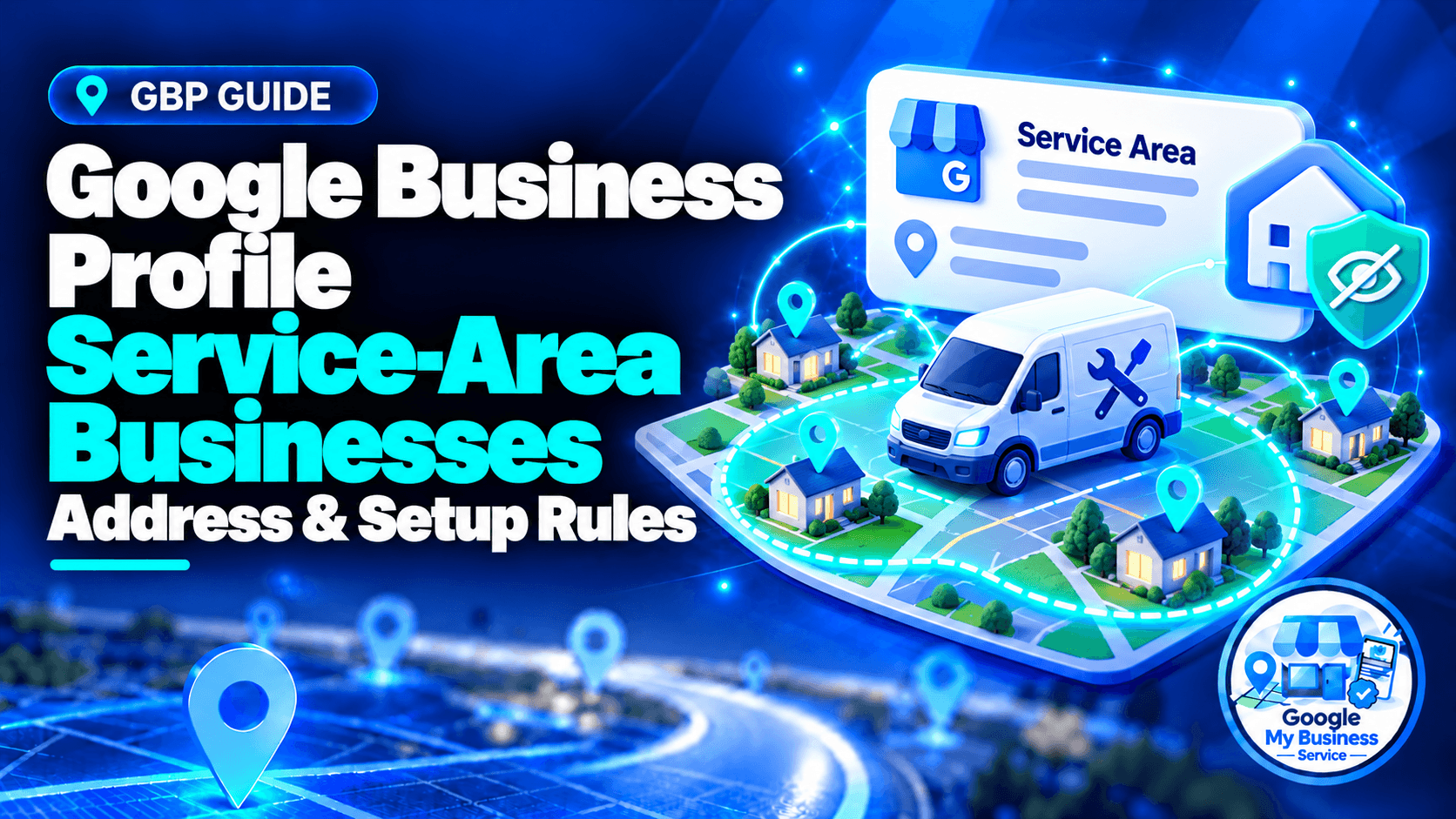
A Google Business Profile for service-area businesses should represent where the business genuinely operates and how it serves customers. If you visit or deliver directly to customers and do not serve them at your own address, hide that address from public view. Add the places you actually serve, then complete the verification steps Google offers.
The main decision is not whether you would prefer a map pin. It is whether customers should arrive at your premises for service. A cleaner storing equipment at home needs a different setup from a repair workshop that receives customers and also makes callouts.
Address Rules
- Pure service-area business: Keep the address hidden when customers are not served there.
- Real operating base: Provide accurate location information when Google requests it. A mailing address where you do not operate is not a substitute.
- Hybrid business: A genuine customer-facing location can show its address and add service areas when the applicable signage and staffing conditions are met.
Setup Rules & Configuration
- Select the setup that reflects whether customers visit you. If asked that question, a pure SAB answers No.
- Add up to 20 supported service areas using cities, postal codes or other available areas, rather than a radius.
- Keep coverage realistic. Google generally describes boundaries within about two hours of driving from the base, with appropriate exceptions for some businesses.
- Use one profile for the operating base and its service area. Another town served does not create another business location.
See Google’s service-area instructions and business-representation guidelines for the underlying rules.
Are you a service-area business, a storefront or a hybrid?
A service-area business travels or delivers directly to customers without serving them at its own address. A storefront receives customers at a qualifying location. A hybrid does both. Choose according to the service customers actually receive, then check the location requirements. An office address or a registered company alone does not settle the decision.
| Operating model | Illustrative example | Appropriate address approach |
|---|---|---|
| Service-area business | A cleaner travels from a home base to customers’ premises. | Hide the base address and enter actual service areas. |
| Storefront | Customers bring devices to a repair counter; no mobile service is offered. | Display the qualifying customer-facing address. |
| Hybrid | A repair workshop receives customers and provides on-site repairs. | Display the qualifying address and add service areas. |
| Online-only | Every consultation happens by email or video call. | Selecting local coverage does not establish GBP eligibility. |
These are illustrative operating examples, not claims about clients or results. General eligibility has documented exceptions. Businesses offering age-restricted products or services, such as alcohol, cannabis or weapons, cannot rely on a service-area-only setup without a storefront.
Use the Google Business Profile eligibility guide if your model needs a broader assessment. Google’s eligibility rules explain the relevant exclusions and exceptions.
Which address can you use, and when should it be hidden?
Use the genuine location from which the business operates, and keep it hidden if customers are not served there. A legitimate home base can support an eligible travelling business. A rented mailing address, remote mailbox or invented branch cannot. Hiding an unsuitable address does not make the underlying location accurate or eligible.
A home base and a virtual office are different
A mobile electrician might keep tools, records and work equipment at home before visiting customers. That is different from renting an address in another city solely to appear local there.
Ask two questions in order:
- Does this location genuinely represent the business’s operation?
- Are customers served here under the applicable location rules?
The first checks whether the location is legitimate. The second helps decide whether customers should see it. Do not treat an address-visibility switch as a way to repair a false location claim.
Customer-facing and coworking locations
A displayed business address needs permanent business signage. A hybrid location must be staffed by the business’s team and able to receive customers during its stated hours. Google also sets specific conditions for coworking offices: clear signage, customers received there and staffing by your own business staff.
A shared building receptionist collecting mail is not equivalent to your team receiving customers. Check the actual arrangements against Google’s address and premises requirements.
Protect the address beyond the profile
Before publishing your website or uploading photographs, inspect what a customer can see. A contact-page template, photographed invoice, vehicle document or screenshot may expose an address you intended to keep private.
Describe coverage clearly without labelling a non-customer-facing home as a public branch. If another platform asks for an address, review its own eligibility and visibility settings rather than copying a street address everywhere automatically.
How do you set up a new service-area Business Profile?
Start by searching for an existing listing, then create a new profile only if the business is not already represented. Enter accurate business details, select the appropriate customer-visit setup, add realistic coverage and follow the verification options shown. Keep a record of the account, operating base and outstanding steps so setup has a clear owner.
- Find the correct record first. Search Google Maps for the real business name and relevant location. If a profile already exists, investigate claiming or access rather than creating a duplicate.
- Use a business-controlled Google Account. Record who is responsible for it and which authorized people will help.
- Enter the real business name and an appropriate category. Choose a category that describes the business; do not turn the name into a list of services and towns.
- Describe customer visits accurately. When asked whether customers visit your location, select No for a pure SAB. Interface wording and order can vary.
- Enter actual service coverage. Use the supported geographic options described below.
- Add working contact information. Check the telephone number and website destination before continuing.
- Complete the offered verification process. Supply accurate operating-location information when requested, and confirm that the final public address setting is appropriate.
Google’s add-or-claim instructions explain the distinction between a new record and an existing listing. A paid provider’s service should also match that distinction.
Suggested setup record:
| Record | What to write down |
|---|---|
| Existing listing | Profile URL, or the result of checking for one. |
| Customer contact | Where customers actually receive the service. |
| Operating base | The genuine location relevant to the profile. |
| Public information | Business name, telephone, website and coverage. |
| Responsibility | Business-controlled account and authorized helper. |
| Current status | Next action, submission date and any notice from Google. |
Keep this record private when it includes non-public business information.
How do you hide the address on an existing profile?
For an existing pure service-area profile, open its location settings and turn off the option that shows the business address to customers. Check the service areas and save the change. Then inspect the public profile to confirm the outcome. This changes address visibility; it does not create another profile or change where the business really operates.
Google’s current address-management instructions give this path:
- Open the correct Business Profile while signed in to its managing account.
- Select Edit profile → Location.
- Next to Business location, select Edit.
- Turn off Show business address to customers.
- Select Save.
Check the service-area field before finishing. Google says that when an address is hidden without a service area being entered, it may choose a local area for you. Define your own accurate coverage instead of assuming the automatic selection fits.
Open the public profile to verify that it no longer directs customers to the base address. Keep a note of the change and its status. If the business still receives customers at qualifying premises, reassess the model before hiding that address.
How should you choose service areas and geographic boundaries?
Choose the cities, postal codes or supported areas you genuinely serve, using actual scheduling and travel arrangements. You can add up to 20 areas, but do not fill the list simply because space remains. The overall boundary should generally stay within about two hours of driving from the base; that guidance is not a guaranteed search-visibility zone.
To edit coverage, use Edit profile → Location → Service area → Edit, select or enter the supported places, and save. Remove locations you no longer serve. Approved service-area edits can take up to 48 hours to appear.
A practical coverage example
Imagine a home-cleaning team based in Kuala Lumpur. Its normal bookings are in several nearby neighbourhoods and adjoining areas. Start with the places the team can reliably schedule, including travel between jobs.
Do not automatically select distant cities because the team once accepted a large one-off booking there. Ask whether the published coverage would give an ordinary customer an accurate expectation of availability. This is a planning recommendation, not a separate Google rule.
If you serve many small localities, review the geographic selections Google supports. A meaningful supported broader area may communicate coverage better than an incomplete list of individual postcodes. Check that it does not imply routine service in places you cannot cover.
Service areas do not establish branches or guarantee rankings
A listed area tells customers where you work. It does not prove that you have an office in that place. Google identifies relevance, distance and prominence as the main local-ranking considerations; its ranking guidance does not promise placement across every area selected.
The practical conclusion is to keep coverage truthful and assess visibility separately. Do not claim a specific hidden-address ranking formula as a published Google rule. Results can differ by query and searcher location.
For wider website and visibility work, read local SEO for small businesses. A useful coverage page can explain services, scheduling and travel arrangements without pretending each area has a branch.
How do you prepare verification evidence without a storefront?
Prepare evidence that connects the genuine operating location, the business’s work and your authority to represent it. Google determines the available verification methods, so follow the options in the profile. If video recording is offered, a travelling business should demonstrate its real operations rather than imitate a storefront it does not have.
Google’s SAB video guidance groups the evidence into three practical areas:
| Evidence | Possible SAB example |
|---|---|
| Where the business operates | Nearby street signs or recognizable landmarks connected to the genuine base. |
| That the business exists | Professional tools, equipment, workspace or relevant business materials. |
| Authority to manage it | Access to business-only assets, performing a service, or suitable documents matching the profile name. |
A branded vehicle is one possible example, not something every trade or mobile business must buy. Prepare genuine evidence appropriate to your work.
For a verification recording, Google requires a live, continuous, unedited video of at least 30 seconds, recorded and uploaded through the Business Profile on a mobile device. Keep private information, sensitive numbers and other people’s faces out of view.
Read the verification methods and preparation guide for the full process. Google’s verification instructions explain why methods vary and why another check may be required. Do not assume every SAB receives a postcard or can choose email instead of video.
What changes when you move or add another operating location?
Review the existing profile when your real operating base or customer-contact model changes. Update the relevant facts and follow any verification request. Expanding coverage is different from opening another location. Before creating an additional profile, establish that there is a genuine separate operating location with separate staff and service areas under Google’s guidelines.
Use these scenarios to choose the next action:
| Change | Appropriate next step |
|---|---|
| The same team begins serving another nearby town. | Review coverage on the existing profile. Do not invent an office. |
| The business moves its actual base. | Update the real location on the existing profile, retain appropriate address visibility and complete verification. |
| A mobile provider opens a customer-facing workshop. | Assess whether the premises meet hybrid requirements before displaying the address. |
| A workshop stops receiving customers but continues callouts. | Review the move to an SAB setup and hide the non-customer-facing address. |
| The company opens another genuine base with its own staff and service area. | Assess that location individually before creating a separate profile. |
Google’s profile-editing guidance says a verified business moving to a new address must verify again. If you cannot update the underlying location through the available controls, use official support rather than making another listing as a shortcut.
What should you check when the profile or an edit looks wrong?
Identify the actual problem before making more changes. A pending edit, rejected verification, exposed address and weak ranking need different responses. Record the profile URL, date and displayed notice, then follow the relevant process. Creating another profile is not a general remedy for a delay, ownership problem or suspended listing.
| Situation | What to check or do |
|---|---|
| A home address is still public. | Confirm the visibility setting was saved on the correct profile and check the edit status. |
| Service coverage has not changed publicly. | Check whether the edit is approved and allow the documented service-area processing window. |
| Google requests verification again. | Follow the offered process using evidence of the current operation. |
| Google changes business information. | Review the notification and correct inaccurate information through the profile. |
| The listing opens publicly but is absent for a service search. | Investigate visibility and competition rather than assuming setup failed. |
| The profile is suspended. | Review the policy issue and use Google’s applicable appeal process; do not create a replacement workaround. |
Google can use other sources to update profile information. Its updates guidance explains notifications and suggested edits. A regular check of the public profile is a sensible working routine, not a requirement to buy monitoring software.
For a detailed diagnosis, read why your business is not showing on Google Maps. Once setup is correct, use the Google Business Profile optimization checklist to review the rest of the listing.
Frequently asked questions
No. A genuine home-based operation can fit the travelling-business model. What matters is the actual service and location arrangement. Renting a mailing address solely to appear established elsewhere does not create a qualifying branch.
The public-address decision depends on how customers are served and whether the premises meet the relevant requirements. For a pure SAB where customers are not served at home, hide it. Do not assume that “residential” alone answers every business-model question.
Google’s current service-area settings use named geographic areas rather than a radius. Use supported selections that describe coverage accurately. An old radius setting is not a reason to keep inaccurate coverage.
No. Twenty is the maximum, not a completion target. Choose the entries that communicate your actual coverage. Adding another place is not a substitute for having the capacity to serve customers there.
No. Google supports service-area profiles without a public street address. Being eligible to appear is different from ranking prominently for every service search. Keep the required address setting and investigate visibility on its own merits.
An authorized representative can assist with the owner’s consent. Agree on responsibilities and account access. Google’s verification requirements still apply, and some evidence needs an authorized person at the real location. Professional assistance does not purchase eligibility or a ranking.
Choose the setup that matches your real business
Start with one practical question: where do customers actually receive your service? Use that answer to check the operating base, public address, service coverage and verification evidence. Save the settings, inspect the public profile and keep a record of anything still awaiting action.
If an eligible business needs a genuinely new profile, our new Google Business Profile setup service starts with an assessment before payment. If you control an active profile that needs improvement, review our Google Business Profile optimization service.
Compare the current options at googlemybusinessservice.com. Existing-profile ownership recovery and suspended-profile recovery are outside our standard service scope, so choose support that fits the problem you need to solve.